Alert: All processes can be run at the same time and can even be stored jobs set to run. The order in which they are run does not matter. AO process is the LAST process after all 4 jobs have completed.
The process can only be run ONCE per company.
If you set a stored job, you still have to do the AO step manually AFTER all jobs have completed, but when there is no processing.
Must be run in all companies in all environments, PRD, TST, TRN.
AP
1. Run APAY - AP Year End

2. Click New

3. Click One Time

4. Set Printing Methods and Click Next

5. Company should default, Click Next

6. Don't need to change any options, click Next.

7. Click Save
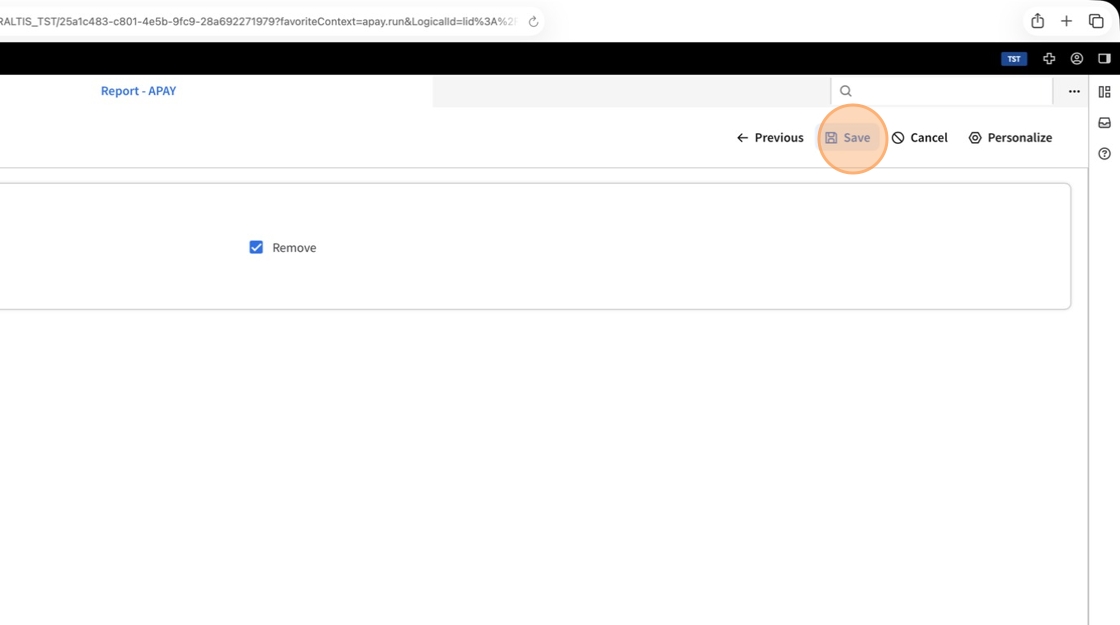
8. Report output should show # Vendors Cleared

AR
1. Run ARAY - AR Year End

2. Click New

3. Click One Time

4. Set Printing Defaults and Click Next

5. Company should default and click Next.

6. Click Save

7. Output of report should show # of Customers Cleared.

IC
Tip: This takes the longest to run, especially company 1.
1. Run ICAAY - IC Year End

2. Click New

3. Click One Time

4. Set Printing Defaults and click Next

5. Company should default and click Next.

6. Click Save

7. Output of report shows # Products Cleared and YTD Issues/Receipts.

GL
1. Run GLAY - GL Year End

2. Click New
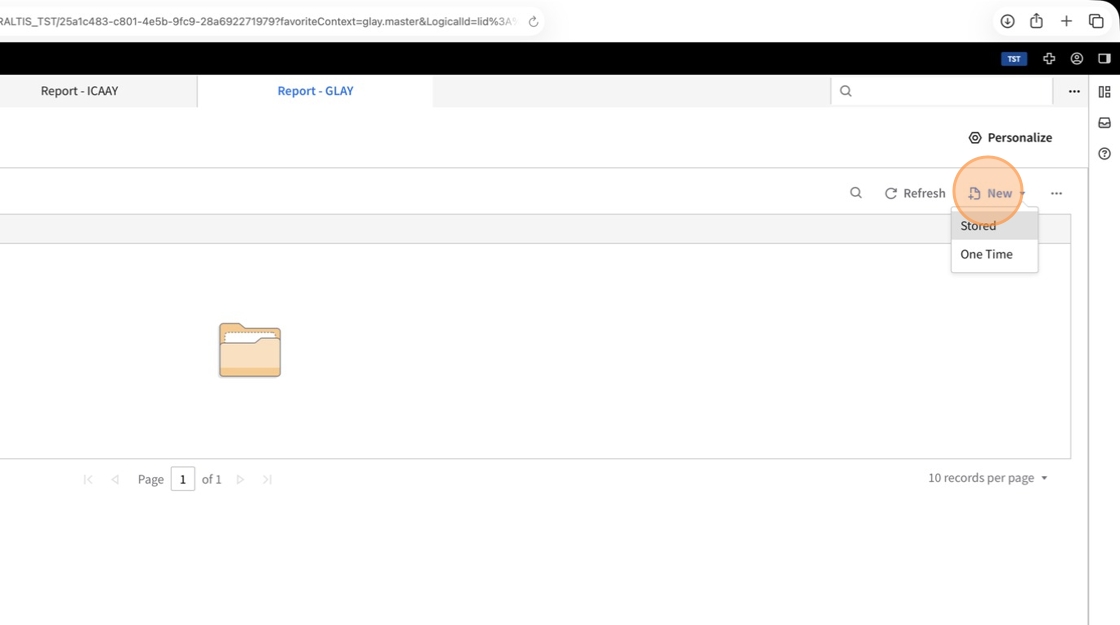
3. Click One Time

4. Set Printing Defaults and Click Next

5. Company should default and click Next.

6. Click Save

7. Output of report should show the correct new year number and # accounts cleared and created. Every GL account that existed in the current year will be created in the new year.

AO
1. Open AO - Administrator Options

2. Click Financials

3. Click Fiscal Year

4. Current Fiscal Year should show the 'new' year already. GLAY updates this field. If it does not show the 'new' year, check to see if GLAY completed. DO NOT RUN GLAY again.

5. In the Period Fiscal Year section change the 'end' dates of each fiscal period to the dates in the new year. Make sure you account for leap day on leap years.

6. Once all dates are updated to the new year's dates click Save.

7. Add Note of Year End and click Add Note.

8. Click OK to Confirm.

9. Click OK again
