Customer Pricing Inquiry Before Promo Pricing
1. In OEIP - Pricing Inquiry Pricing shows using the customer's locked price.

2. PD Record indicates it is level 1 (Customer/Product pricing)

Set Promo Pricing Record
1. Click the Navigation Search and type PDSP (Pricing Setup)

2. Click New

3. From the Level Drop Down select Product

4. In the Product Box Enter the Product with the Fixed Price.

5. Enter the Start Date

6. Click Save

7. Enter the End Date

8. Check the box next to Promotional
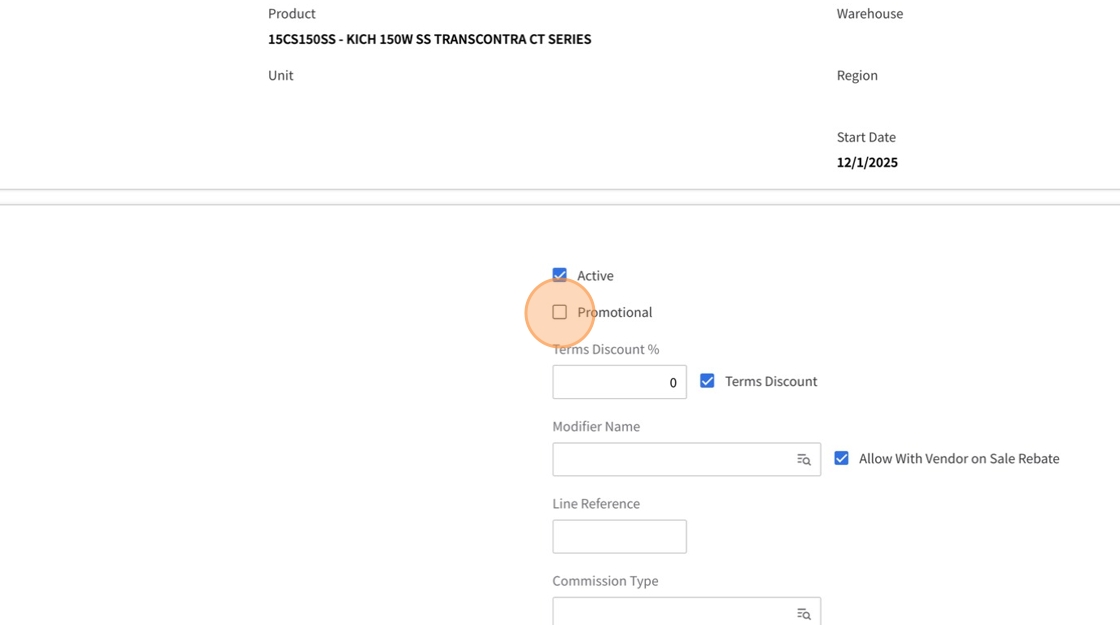
9. Choose Actual Amount from the Price Type Dropdown

10. Enter the fixed price in Level 1 Price field.

11. Enter 100 in Override Tolerance Up

12. Enter 0.01 in Override Tolerance Down

13. Click Save

Recheck Customer Pricing Inquiry
1. Price Now Shows Promotional Price

2. In the Pricing Record, it will show Promotional Pricing Record and that it is PROMO Priced
