1. In CSD, navigate to Sales - Entry - Order to create a sales order

2. Enter your Customer # and Branch and select Next

3. Enter your Taken By User and Password and select Submit

4. Enter your Products and Quantity and select "Add"

5. Once all items are added to order, Click "Collect Payment"

6. Select the customers stored card or choose the correct Payment Type (i.e., Visa, Mastercard, Amex, etc.). Check the Charge Card Immediately box and choose One Time Sale.

7. The Cenos pop up will appear and the Credit Card terminal will light up for the customer to swipe/insert their card. Once completed the Card details will fill on the screen and the green Submit button will be pressed.
NOTE: If the customers credit card requires a signature then the customer will still get a prompt to sign during the processing of their credit card but they will also be required to sign again in the steps below.

8. Next, inside the Collect Payment screen, Click "Signature" in the top right

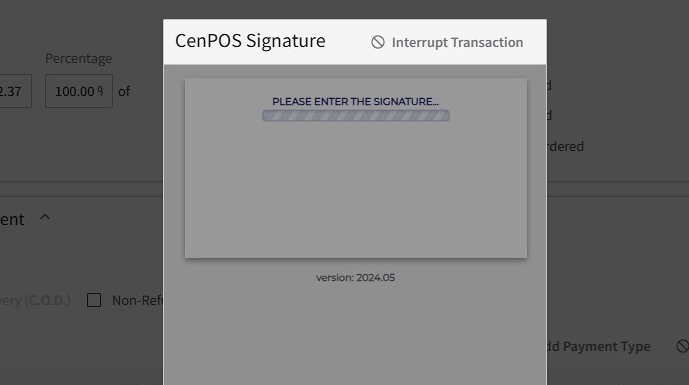
9. The CenPos Signature pop up will appear and once the status shows "PLEASE ENTER THE SIGNATURE" then the Credit Card Terminal should light up for the customer to sign.
10. The Credit Card Terminal will then show "Please sign below" and the customer will need to use the pen attached to the terminal to do a clear signature.
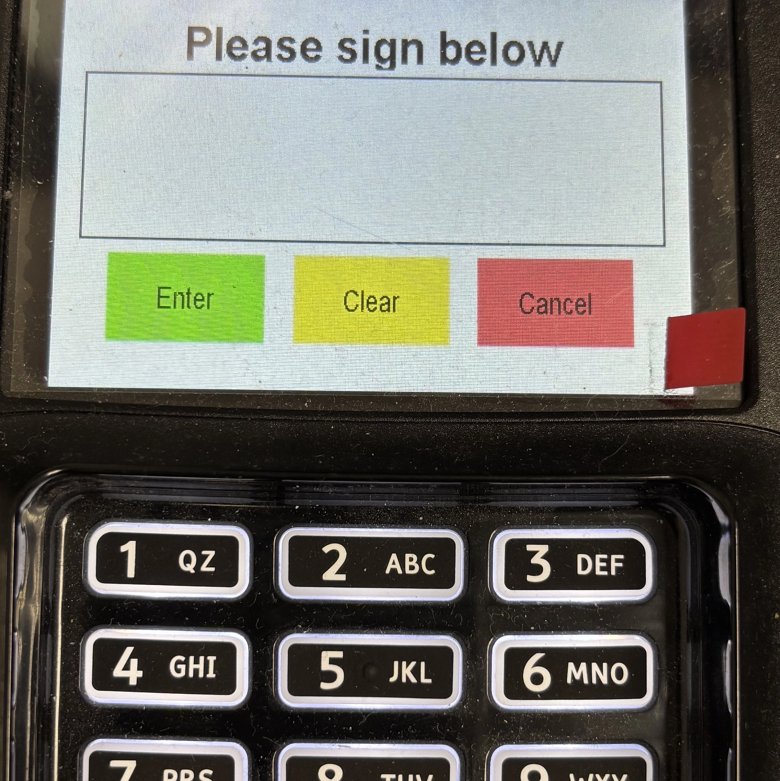
11. Once they have completed their signature, the customer will need to press the green Enter button.

12. The signature will be sent back onto the CenPos Signature pop up in CSD and you will then need to press the green SUBMIT button. The signature pop up should then close.

13. The signature as been fully captured onto the order in CSD and you can now press Finish.

14. You will get the prompt if you want to ship the order and you can press Yes if you are ready to mark the order as shipped.

15. If you attempt to ship an order that does not have a signature captured on it then you will get this prompt below. You will need to press No and return to the previous screen and follow the instructions above to capture the signature.

16. If you press Yes then you will get this Authorization Required pop up which you will not be able to bypass and you must select Cancel to close out and proceed with the signature capture.

NOTE: You no longer need to print copies to obtain a signature for picked up (Will Call) orders of any kind. You will NOT need to print any copies of invoices unless the customer requests a copy to take with them. The signature will display on the Invoice as seen as below and be available to view in Order Inquiry as well.
If the order is a delivery order then the Driver must do the signature on the order and Sign the order as "DELIVERED".
You will need to print a delivery note/packing list for delivery orders and will need to obtain a signature when it is delivered.
If the order is an order where the customer is not present and it is being shipped to the customer then you must sign "SHIPPED" on the order.
To view the signature on an order, go to Order Inquiry and select the Totals tab

Scroll down below the Addons section and there is an Image section which will display the customers signature.
