Alert! BE VERY CAREFUL WITH THIS STEP.
1. Open "AP Entry Pay Invoices Due" (APEP)

2. Click " New "

3. Choose One Time

4. Choose View from the Print Type Options

5. Click " Next "

6. On the Ranges page Click " Next "

7. On the Options page Click " List " next to #7

8. Click "Vendor " and enter the first vendor number

9. Click " Add To List "

10. Click the Include Check Box next to the invoices that are ZERO dollar amounts.

Alert! BE VERY CAREFUL to only select zero amounts.
11. Click each zero amount invoice.

12. When all are selected, Click the arrow to " Navigate Back "

13. Click "Vendor" and select the next vendor and repeat the process.

14. Once all vendors are selected, Click " Next "

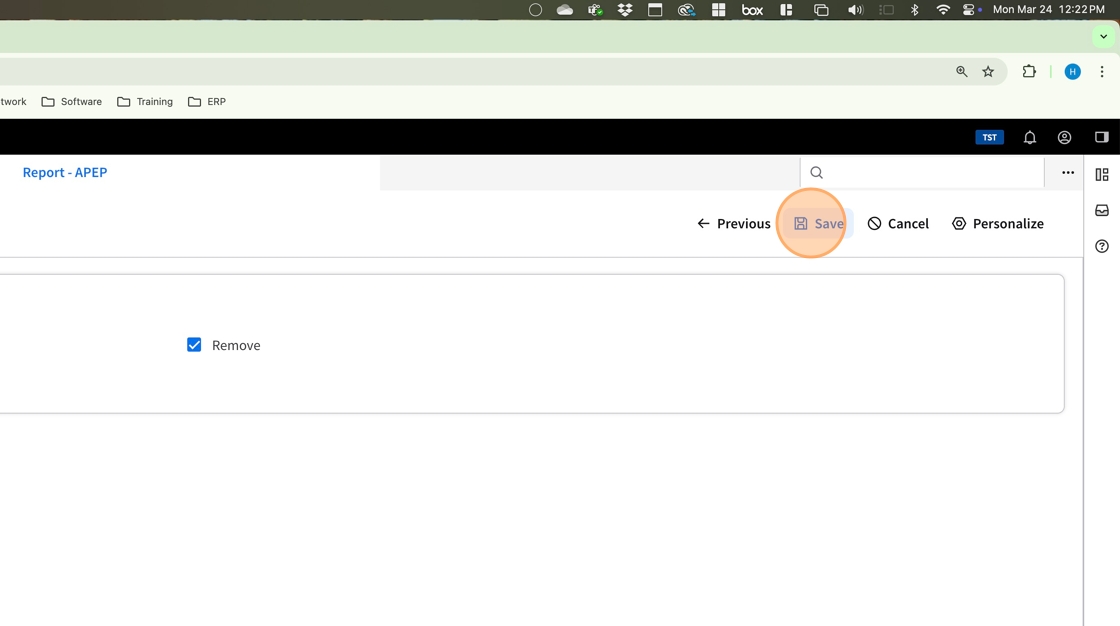
15. Click " Save "
16. Click the Widgets button to open the Widget Panel.

17. Scroll down to the Reports section and Click "Accounts Payable Pay Invoices Due"

18. On the last page of the file, make sure the # of Checks says ZERO

19. Make sure that the Total Amounts are ZERO

Alert! If either of these have something other than ZERO, contact helpdesk@centraltis.com IMMEDIATELY to have this corrected.