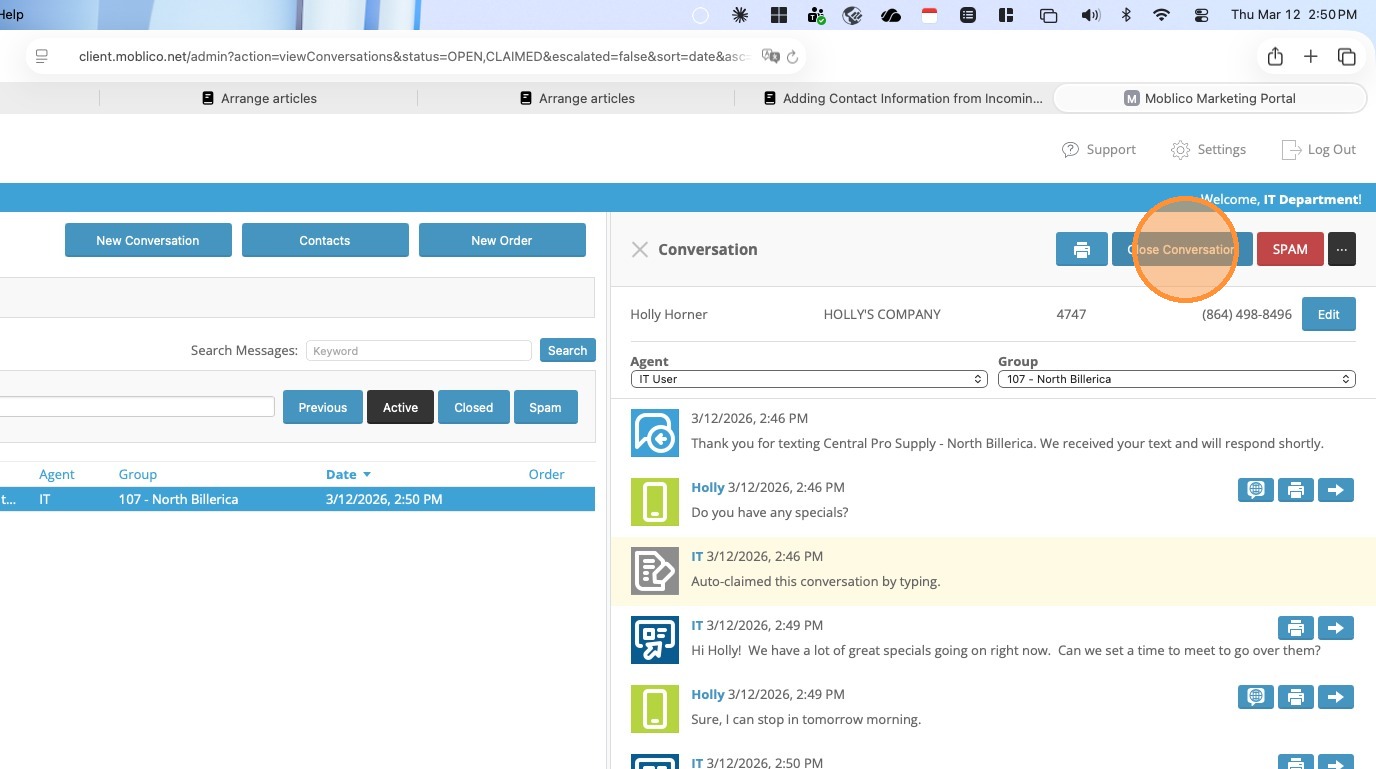
1. In the Main "Inbox" you will see messages as they come in. There is an indicator that will indicate the priority of the message.
Green indicates the message is new. A message will stay green for 10 minutes.
At the 10 minute mark, it will move to Yellow (as shown below) and an EMAIL will be sent to the branch (see example in step 2).
After another 10 minutes if the email has still not be opened and responded to, the indicator will change to Red and the Area/Regional Leader will receive an EMAIL.
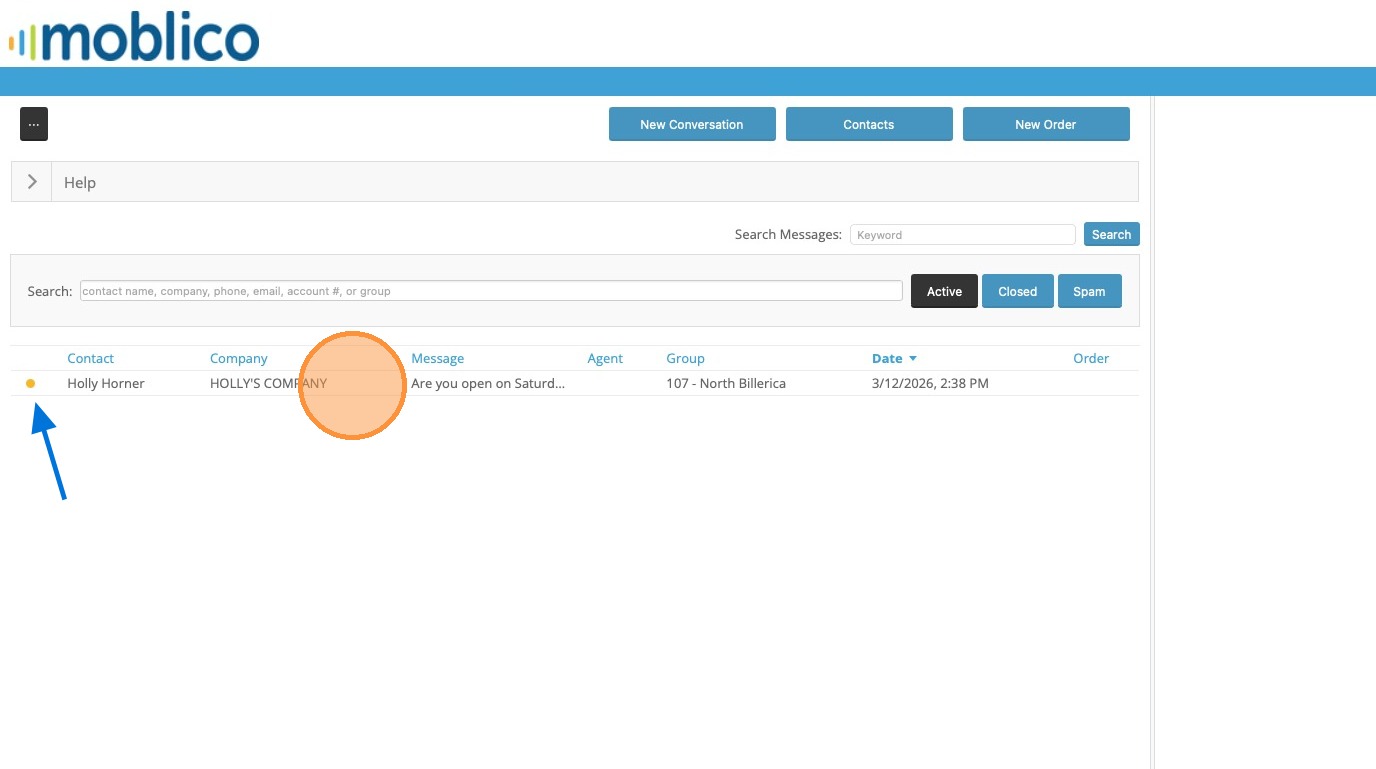
2. Sample of the Escalation Email
Using Quick Replies
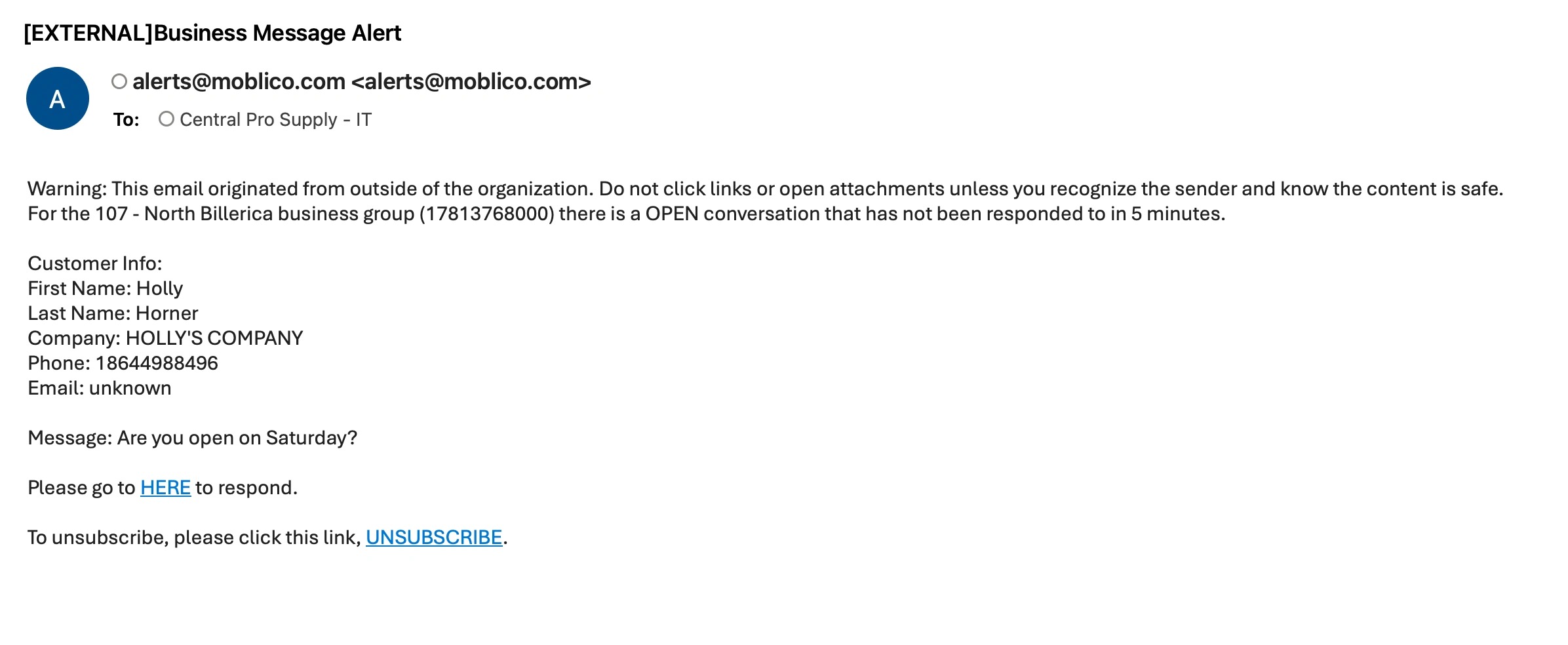
3. Click on the Messsage to Open the Chat Panel.
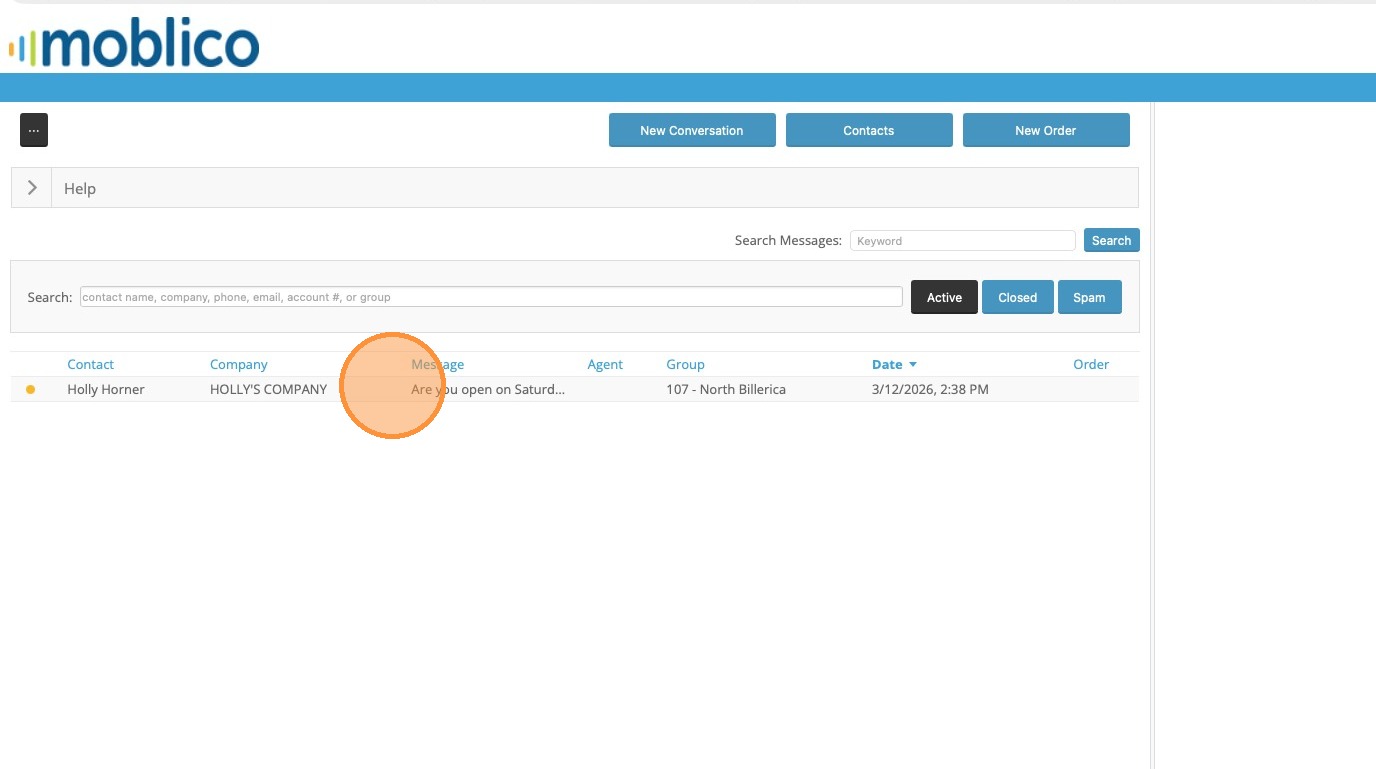
4. There are some preconfigured Quick Reply messages that you can opt to use. In this example, the question was regarding hours. There is a quick reply message that indicates the branch hours. There is also one with the branch address. If your location is difficult to find from the GPS directions, we can customize the message to include landmarks or anything else that may help.
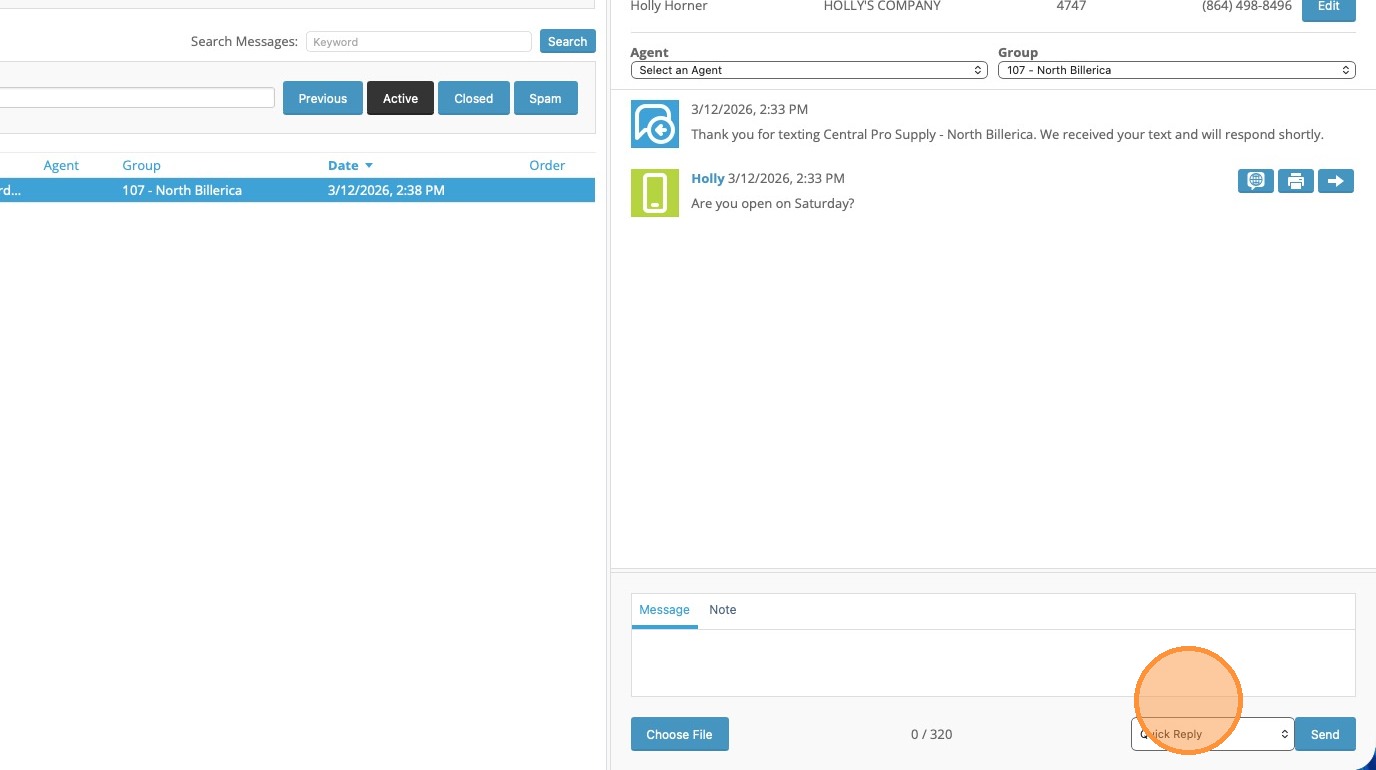
5. From the Quick Reply Drop Down select the Quick Reply Message that you would like to send.
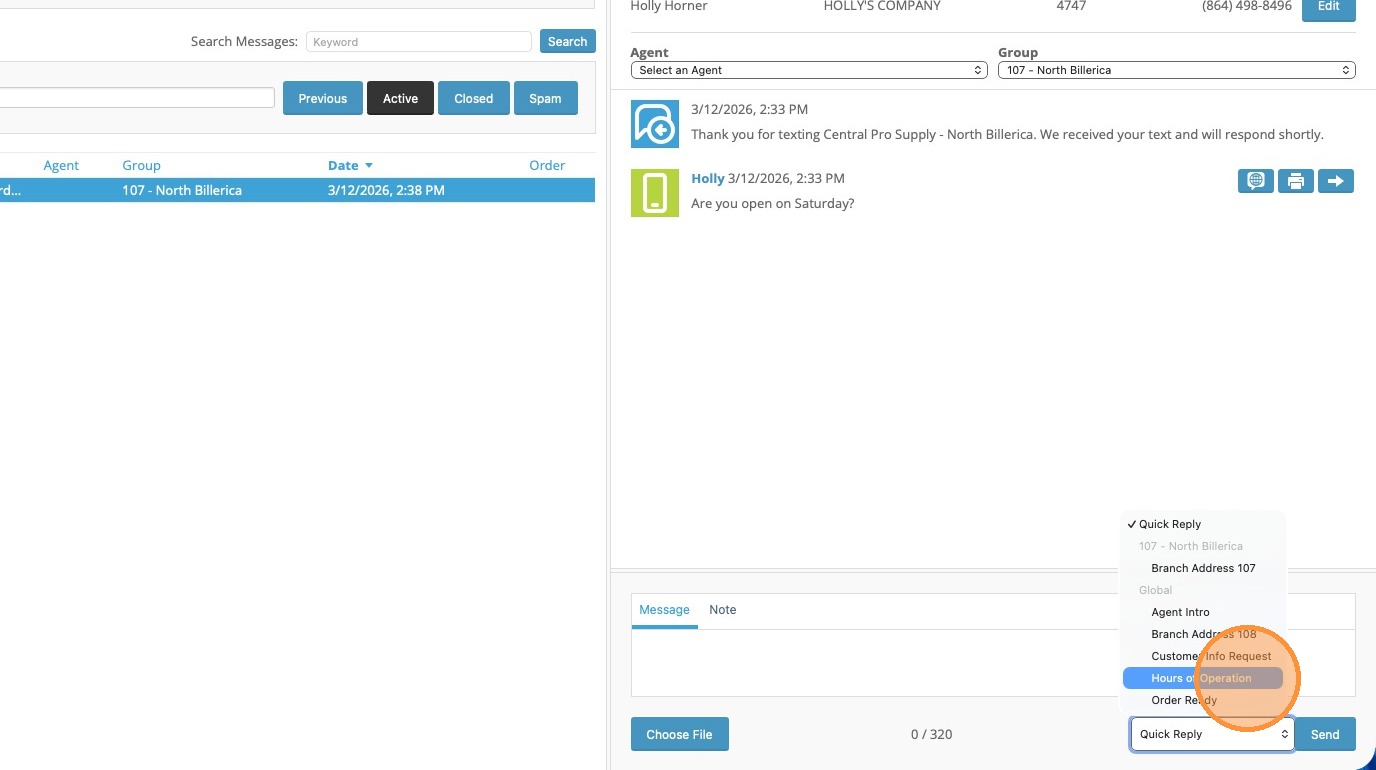
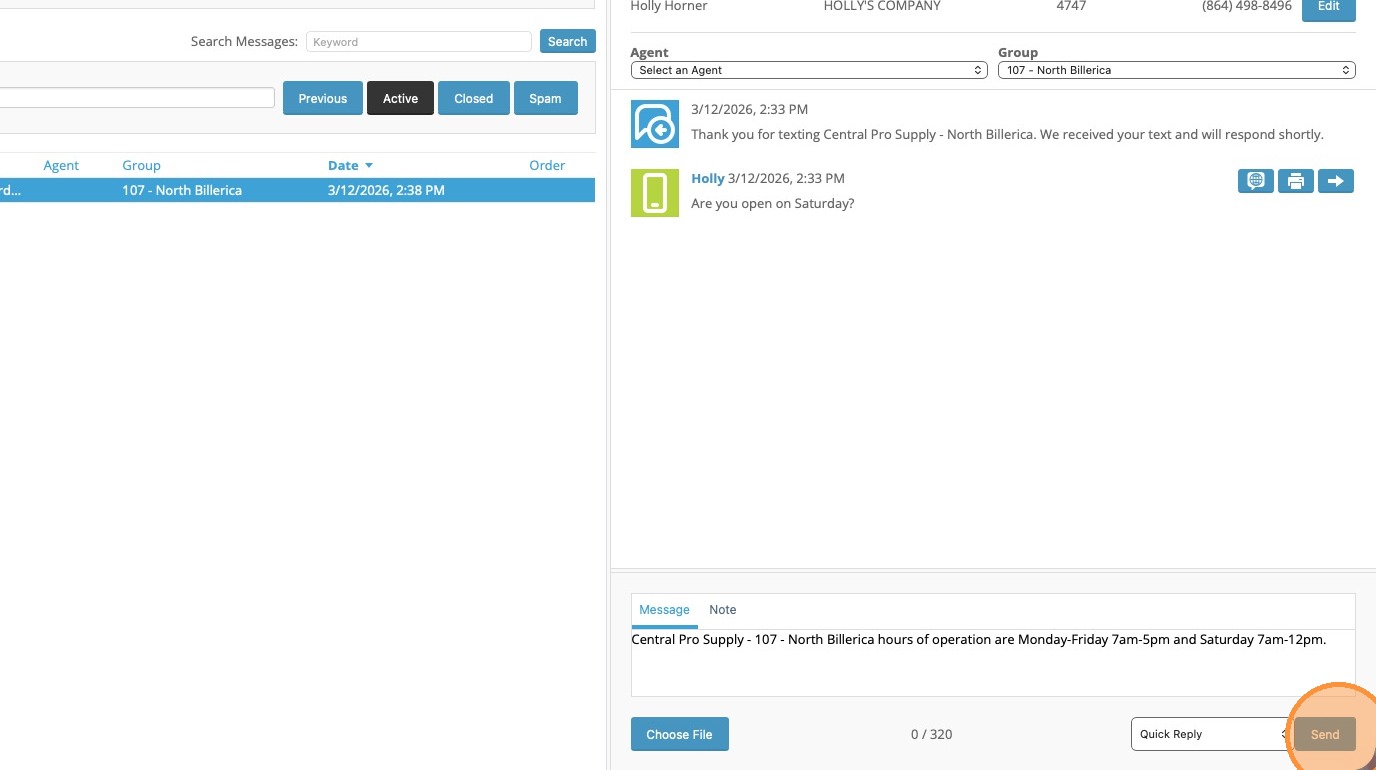
6. You can add to the message if you need to or just click Send.
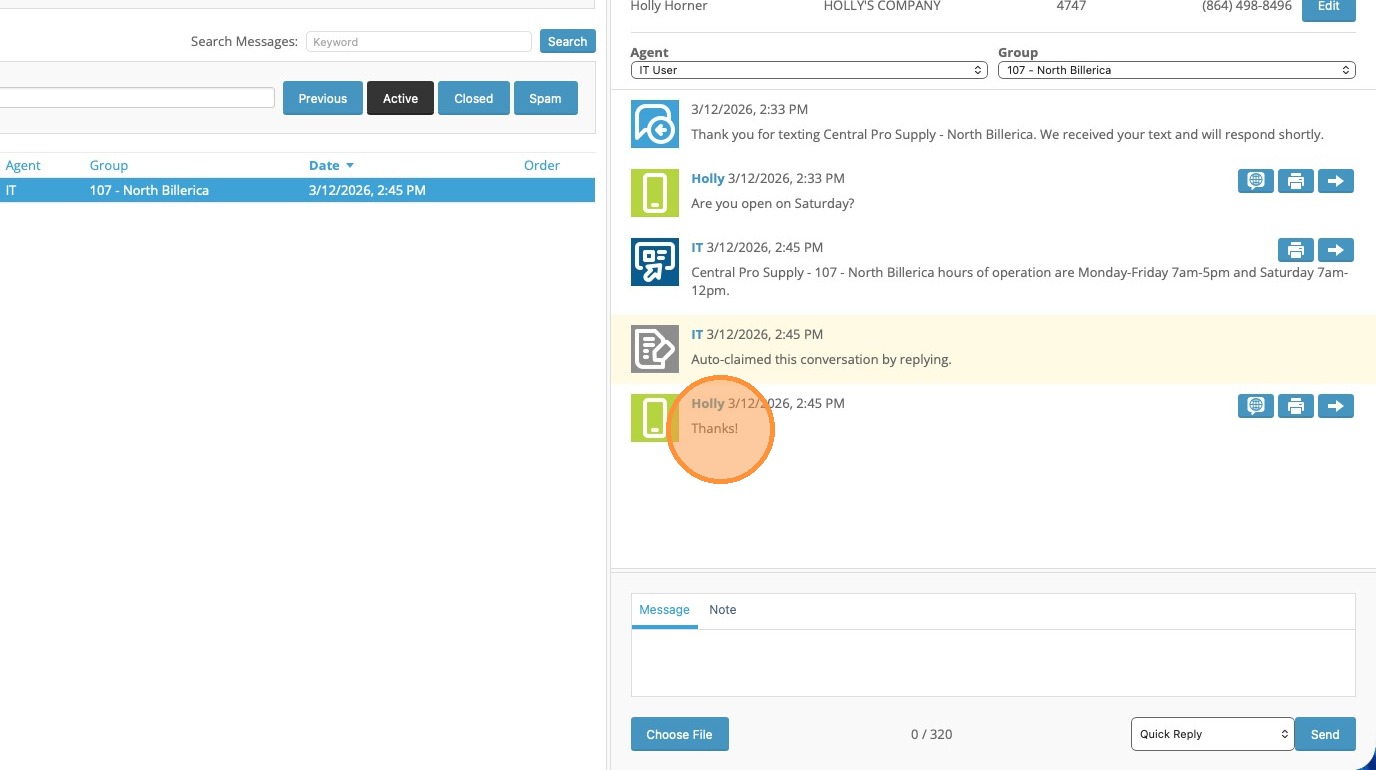
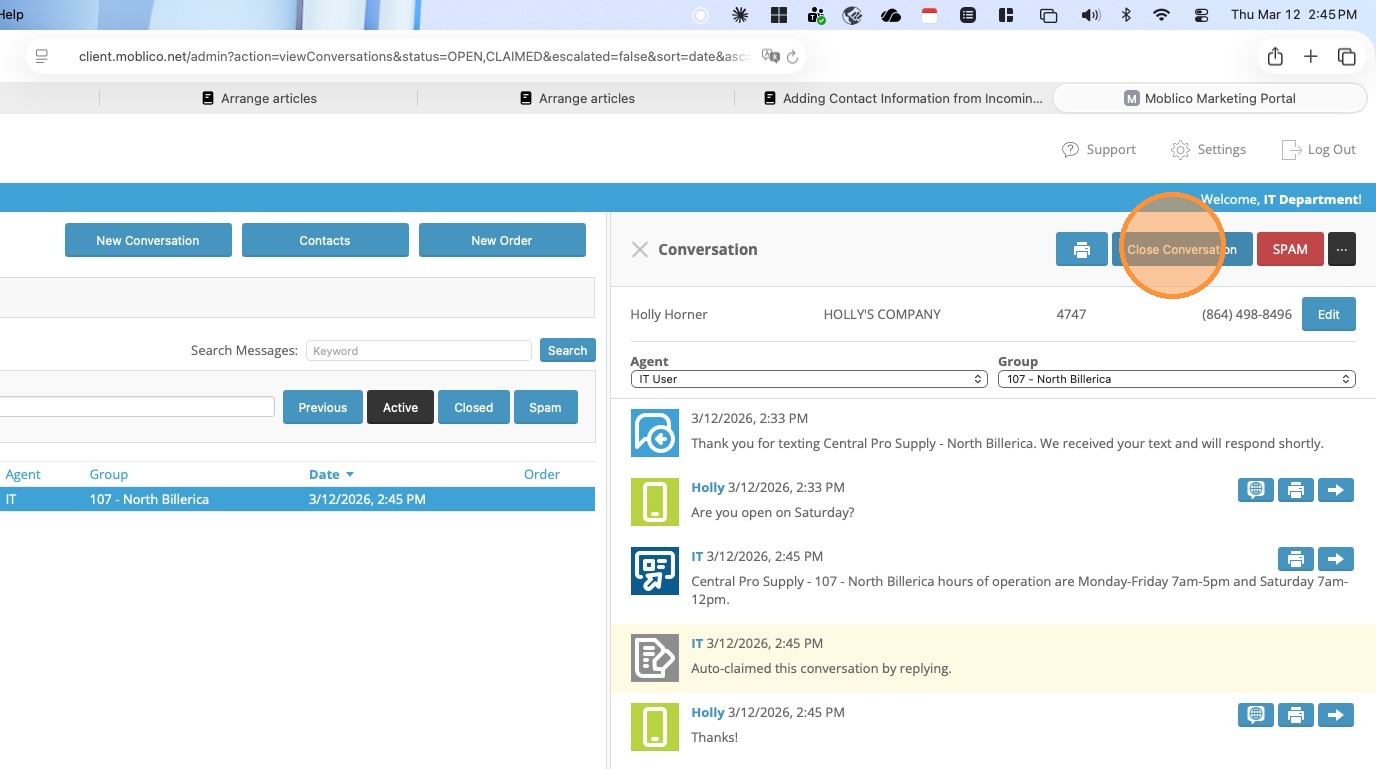
7. Any replies from the customer will show in the Chat Panel.
8. Once the conversation has ended, click Close Conversation.
Manual - Conversational Replies
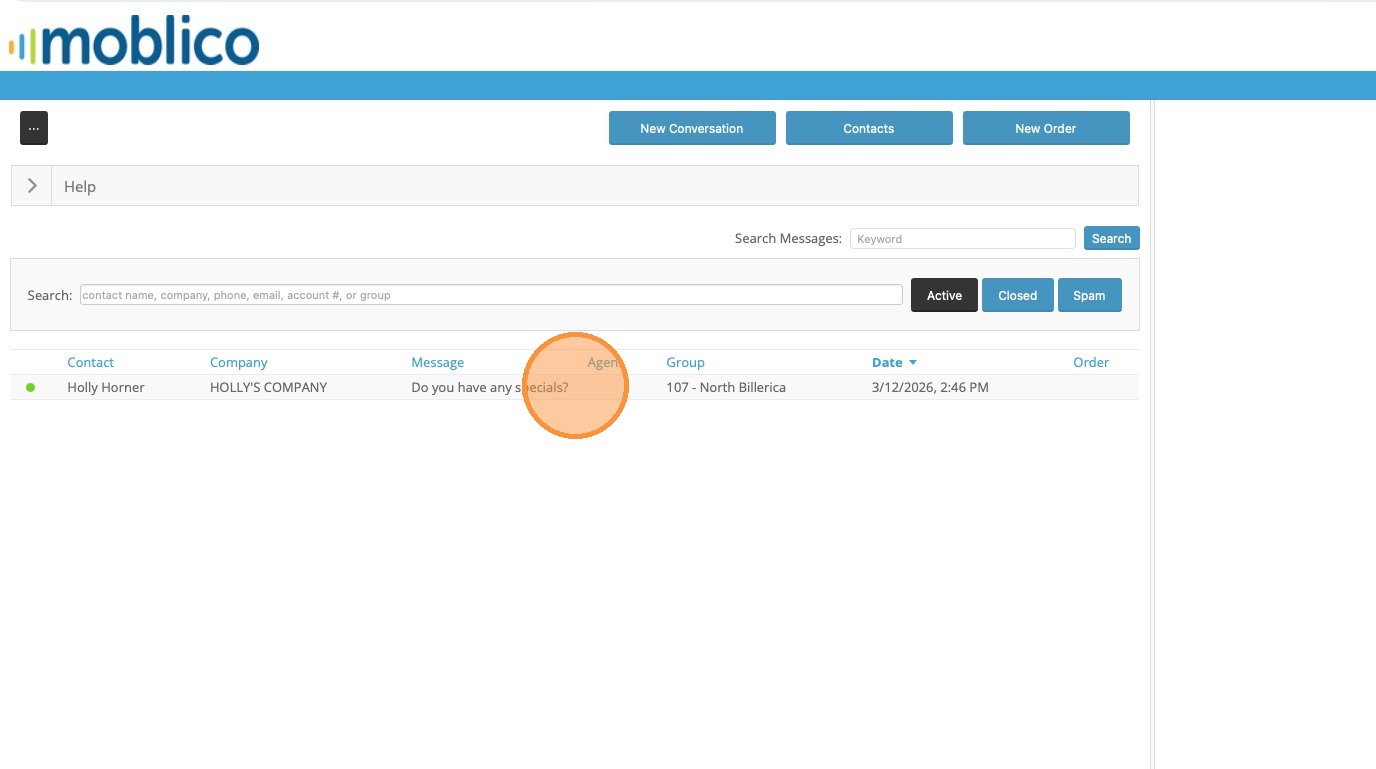
9. Click on the Messsage to Open the Chat Panel.
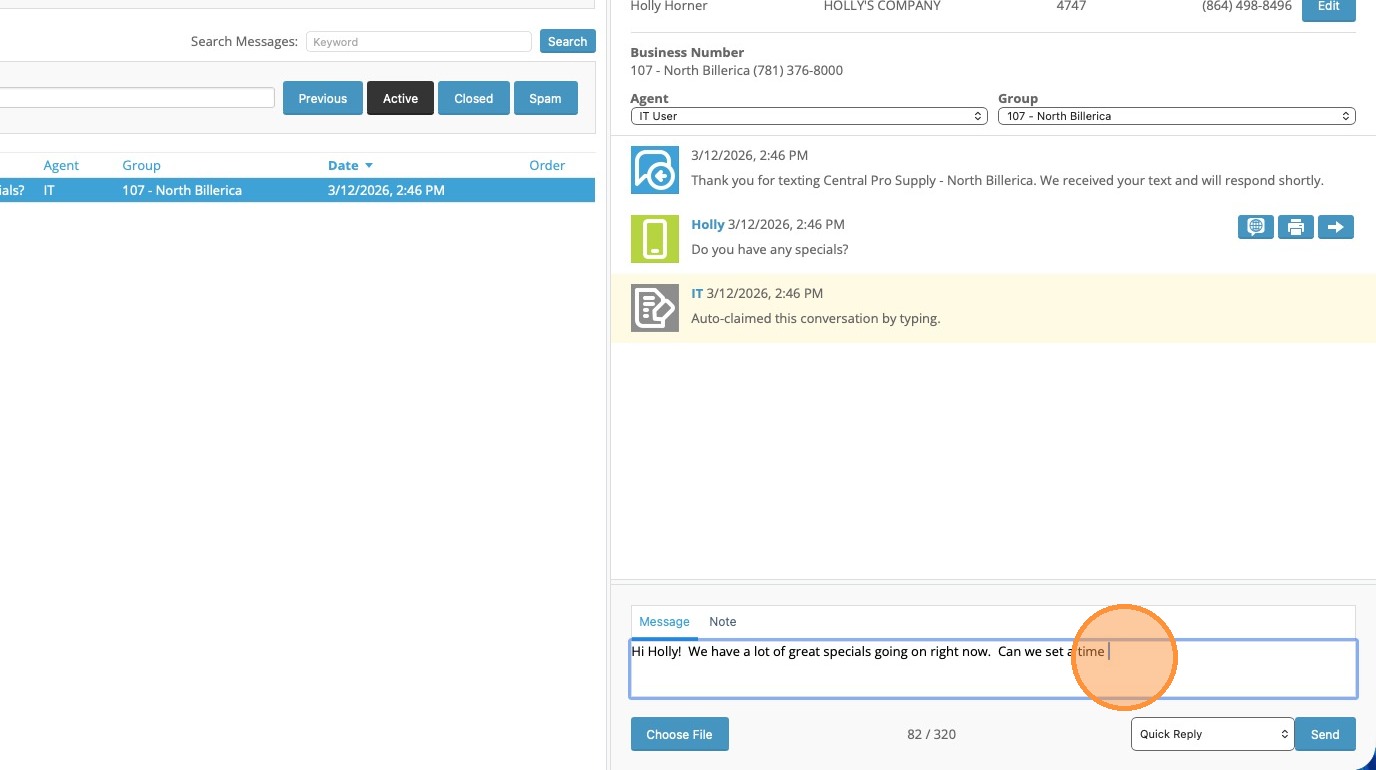
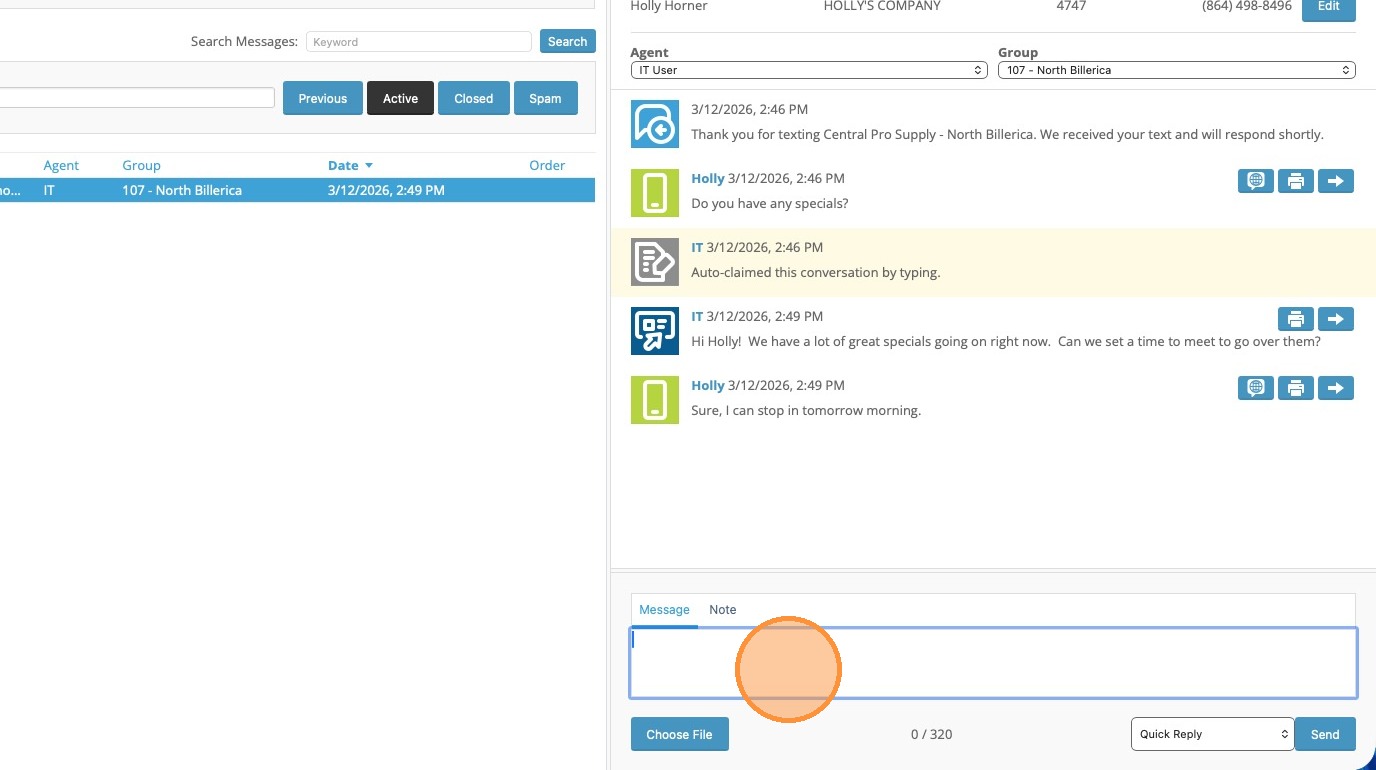
10. In the Message Box enter your response.
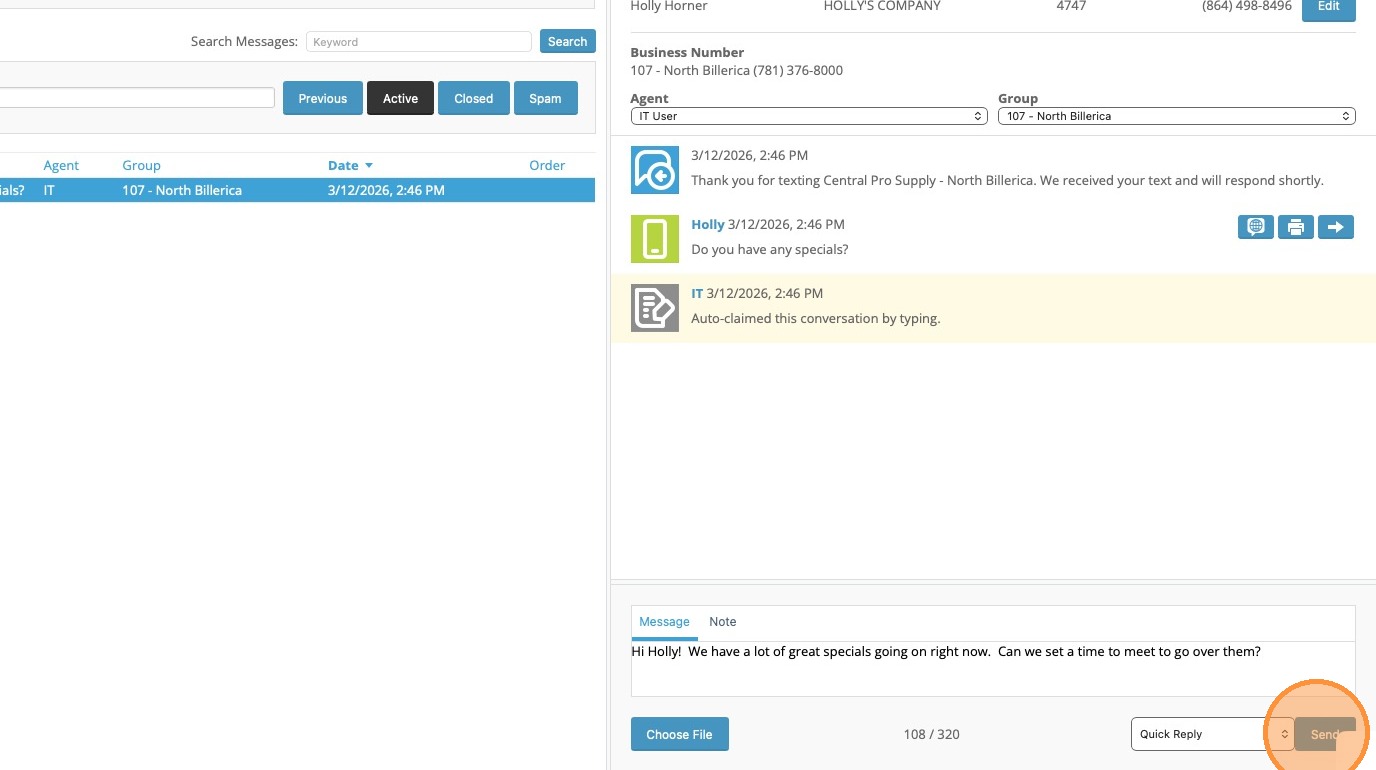
11. Click Send
12. New messages from the customer will come in through the chat window and you can continue the conversation.
13. Once the conversation has concluded, click Close Conversation.